

unity(C#/cs)请求 python django后端服务器预制体渲染 scroll list 视频列表
以下是从 Django 后端准备 到 Unity 前端实现 “B 站式视频滚动列表” 的完整、详细流程,包含所有关键步骤(结合你之前遇到的问题和需求优化):作者提供的django后端服务
二、Unity 前端:实现 Scroll View 视频列表
1. 新建 Unity 项目与基础设置
- 打开 Unity,新建「2D 或 3D 项目」(建议 3D 核心,UI 适配更灵活)。
- 确保退出 Play 模式(顶部 Play 按钮为灰色,避免后续操作报错)。
2. 搭建 Scroll View 基础结构
Scroll View 是实现 “滚动列表” 的核心容器,步骤如下:
- 在 Hierarchy 面板右键 → UI → Scroll View,创建 Scroll View 组件。
- 调整 Scroll View 位置和大小(如铺满屏幕中间区域,宽 800,高 600),并删除默认的
Content子物体下的Text(无用)。 - 配置 Scroll View 核心子物体:
- Viewport:可视区域,只显示列表的可见部分,无需修改。
- Scrollbar Vertical:垂直滚动条,保留默认设置(控制上下滚动)。
- Content:存放所有视频卡片的父物体,需添加布局组件让卡片自动排列。
3. 配置 Content 布局(让卡片垂直排列)
选中 Scroll View → Viewport → Content,添加以下组件(确保卡片自动垂直排列且高度自适应):
- 添加 Vertical Layout Group 组件(控制子物体垂直布局):
- 勾选 Child Force Expand → Width(让每个视频卡片宽度适配 Content)。
- 取消勾选 Child Force Expand → Height(卡片高度由自身决定)。
- 设置 Spacing 为 10(卡片之间的垂直间距)。
- 设置 Padding 为 (20, 20, 20, 20)(Content 内边距,避免卡片贴边)。
- 添加 Content Size Fitter 组件(让 Content 高度随卡片数量自动变化):
- Horizontal Fit 设为
Unconstrained。 - Vertical Fit 设为
Preferred Size(Content 高度 = 所有卡片高度 + 间距总和)。
- Horizontal Fit 设为
4. 创建视频卡片预制体(VideoCard.prefab)
预制体是 “单个视频卡片的模板”,所有视频数据会通过脚本填充到这个模板中。
步骤 1:创建卡片根物体
- 在 Hierarchy 面板右键 → Create Empty,命名为
VideoCard。 - 选中
VideoCard,添加 Image 组件(作为卡片背景):- 设置 Color 为浅灰色(如 RGB (245,245,245)),Alpha 为 1(不透明)。
- 设置 Rect Transform 尺寸:宽 700,高 200(根据需求调整,确保显示完整信息)。
- 给
VideoCard添加 Button 组件(实现 “点击卡片播放视频” 的交互):- 无需修改 Button 其他设置,后续通过脚本绑定点击事件。
步骤 2:添加卡片子元素(封面、标题等)
为 VideoCard 添加以下子物体(右键 VideoCard → UI → 对应组件),并调整位置和样式:
| 子物体名称 | 组件类型 | 作用 | 位置 / 样式设置 |
|---|---|---|---|
| Cover | Image | 显示视频封面图 | 位置 (0,0,0),尺寸 (200,180);Raycast Target 设为 false(避免遮挡按钮点击) |
| Title | Text - TextMeshPro | 显示视频标题 | 位置 (220, 60, 0),尺寸 (450, 40);字体大小 16,颜色黑色,加粗 |
| Author | Text - TextMeshPro | 显示作者昵称 | 位置 (220, 20, 0),尺寸 (200, 20);字体大小 12,颜色灰色 |
| Description | Text - TextMeshPro | 显示视频描述 | 位置 (220, -20, 0),尺寸 (450, 40);字体大小 11,颜色深灰色 |
| ViewCount | Text - TextMeshPro | 显示播放量 | 位置 (600, -80, 0),尺寸 (100, 20);字体大小 12,颜色灰色,右对齐 |
- 注意:若创建 Text 时默认是
Text - TextMeshPro(Unity 推荐),直接使用即可;若需用旧版Text,右键VideoCard → UI → Text,后续脚本需对应修改(推荐 TMPro,文字更清晰)。
步骤 3:保存为预制体
- 在 Project 面板右键 → Create → Folder,命名为
Resources(脚本需从该文件夹加载预制体)。 - 拖动 Hierarchy 面板中的
VideoCard到 Project 面板的Resources文件夹中,生成VideoCard.prefab预制体。 - 删除 Hierarchy 面板中的
VideoCard(预制体已保存,后续通过脚本动态创建)。
5. 导入必要资源与插件(可选但推荐)
- TextMeshPro 资源:若创建
Text - TextMeshPro时提示 “缺少资源”,点击顶部菜单栏 Window → TextMeshPro → Import TMP Essential Resources,在弹出窗口点击Import(需退出 Play 模式)。 - 视频播放插件(后续播放视频用):若需实现视频播放,导入
AVPro Video或Unity Video Player(内置),此处先不配置,仅做准备。
模型脚本:VideoDataModels
using System;
using System.Collections.Generic;
using UnityEngine;

// 视频剧集模型
[Serializable]
public class Episode
{
    public int title;
    public string url;
    public string price;
}

// 评论模型
[Serializable]
public class Comment
{
    public string commentContent;
    public string creationTime;
}

// 弹幕模型
[Serializable]
public class Danmu
{
    public string text;
    public string color;
    public string time;
}

// 单个视频模型
[Serializable]
public class VideoItem
{
    public int video_id;
    public string avatar;
    public string cover;
    public string nickName;
    public string title;
    public string description;
    public List commentContent;
    public List danmuList;
    public List episodes;
    public string account;
    public int user_id;
    public string nickname;
    public float peoplePlayCount;
    public int followers_count;
    public int total_videos;
    public string total_play_count;
    public int total_comments_count;
    public string date;
    public string total_thumbs_up;
    public string total_dislikes;
    public string total_mantou;
    public string total_collections;
    public int total_forwards;
}

// 用户视频数据模型
[Serializable]
public class UserVideoData
{
    public string account;
    public int user_id;
    public string avatar;
    public string nickname;
    public int followers_count;
    public int total_videos;
    public float total_play_count;
    public int total_comments_count;
    public string date;
    public float total_thumbs_up;
    public float total_dislikes;
    public float total_mantou;
    public float total_collections;
    public int total_forwards;
    public List videos;
}

// 视频列表响应模型
[Serializable]
public class VideoListResponse
{
    public List data;
}

渲染卡片脚本:VideoListManager
using System;
using System.Collections;
using System.Collections.Generic;
using UnityEngine;
using UnityEngine.Networking;
using UnityEngine.UI;
using TMPro;
public class VideoListManager : MonoBehaviour
{
public GameObject videoCardPrefab; // 视频卡片预制体
public Transform contentParent; // ScrollView的Content容器
public string apiUrl = "http://192.168.0.103:8000/user/get_user_video_statistics/"; // API地址
public string baseImageUrl = "http://192.168.0.103:8000/"; // 图片基础URL
void Start()
{
Debug.Log("VideoListManager.Start: 开始初始化网络请求设置");
// 开发环境设置:允许HTTP连接和忽略SSL验证
System.Net.ServicePointManager.SecurityProtocol =
System.Net.SecurityProtocolType.Tls12 |
System.Net.SecurityProtocolType.Tls11 |
System.Net.SecurityProtocolType.Tls;
System.Net.ServicePointManager.ServerCertificateValidationCallback =
(sender, certificate, chain, sslPolicyErrors) => true;
Debug.Log("VideoListManager.Start: 开始发起视频列表请求");
StartCoroutine(GetVideoList());
}
// 从后端获取视频列表
IEnumerator GetVideoList()
{
Debug.Log($"VideoListManager.GetVideoList: 发起请求,目标URL: {apiUrl}");
UnityWebRequest request = UnityWebRequest.Get(apiUrl);
request.timeout = 10; // 设置超时时间
request.SetRequestHeader("Accept", "application/json");
yield return request.SendWebRequest();
// 打印调试信息
Debug.Log($"VideoListManager.GetVideoList: 请求状态: {request.result}");
Debug.Log($"VideoListManager.GetVideoList: 响应码: {request.responseCode}");
Debug.Log($"VideoListManager.GetVideoList: 响应内容长度: {request.downloadHandler.text.Length}");
Debug.Log($"VideoListManager.GetVideoList: 响应内容前50字符: {request.downloadHandler.text.Substring(0, Math.Min(50, request.downloadHandler.text.Length))}");
if (request.result == UnityWebRequest.Result.Success)
{
try
{
string json = request.downloadHandler.text;
Debug.Log($"VideoListManager.GetVideoList: 完整JSON响应: {json}");
// 处理JSON数据(兼容数组和对象格式)
VideoListResponse response;
if (json.StartsWith("["))
{
Debug.Log("VideoListManager.GetVideoList: JSON数据以数组开头,进行包裹处理");
// 如果是数组格式,包裹成对象
json = "{"data":" + json + "}";
response = JsonUtility.FromJson(json);
}
else
{
Debug.Log("VideoListManager.GetVideoList: JSON数据以对象开头,直接解析");
// 如果是对象格式,直接解析
response = JsonUtility.FromJson(json);
}
if (response != null)
{
Debug.Log($"VideoListManager.GetVideoList: 响应对象不为空,data字段 {(response.data != null ? "非空" : "空")}");
if (response.data != null)
{
Debug.Log($"VideoListManager.GetVideoList: 成功解析到 {response.data.Count} 个用户数据");
ClearAllVideoCards();
CreateAllVideoCards(response.data);
}
else
{
Debug.LogError("VideoListManager.GetVideoList: 解析后的数据中data字段为空");
}
}
else
{
Debug.LogError("VideoListManager.GetVideoList: 解析后得到的响应对象为空");
}
}
catch (Exception e)
{
Debug.LogError($"VideoListManager.GetVideoList: 解析JSON失败: {e.Message}
堆栈信息: {e.StackTrace}");
}
}
else
{
Debug.LogError($"VideoListManager.GetVideoList: 请求失败: {request.error},详细响应: {request.downloadHandler.text}");
}
}
// 创建所有视频卡片
void CreateAllVideoCards(List userDatas)
{
Debug.Log($"VideoListManager.CreateAllVideoCards: 开始创建视频卡片,共 {userDatas.Count} 个用户数据");
foreach (var userData in userDatas)
{
Debug.Log($"VideoListManager.CreateAllVideoCards: 处理用户数据,user_id: {userData.user_id}");
if (userData.videos != null)
{
Debug.Log($"VideoListManager.CreateAllVideoCards: 用户 {userData.user_id} 有 {userData.videos.Count} 个视频");
foreach (var video in userData.videos)
{
CreateVideoCard(video);
}
}
else
{
Debug.LogWarning($"VideoListManager.CreateAllVideoCards: 用户 {userData.user_id} 的videos字段为空");
}
}
}
// 创建单个视频卡片
void CreateVideoCard(VideoItem video)
{
Debug.Log($"VideoListManager.CreateVideoCard: 开始创建视频卡片,video_id: {video.video_id},标题: {video.title}");
if (videoCardPrefab == null)
{
Debug.LogError("VideoListManager.CreateVideoCard: 请赋值视频卡片预制体");
return;
}
if (contentParent == null)
{
Debug.LogError("VideoListManager.CreateVideoCard: 请赋值Content容器");
return;
}
// 实例化卡片
GameObject card = Instantiate(videoCardPrefab, contentParent);
card.name = $"Video_{video.video_id}"; // 命名卡片便于调试
try
{
// 打印视频数据详细信息
Debug.Log($"VideoListManager.CreateVideoCard: 视频 {video.video_id} 详细信息:标题-{video.title},描述-{video.description},封面URL-{video.cover},头像URL-{video.avatar}");
// 设置标题(兼容Text和TextMeshPro)
SetText(card.transform, "Title", video.title);
// 设置描述
SetText(card.transform, "Description", video.description);
// 设置播放量
SetText(card.transform, "PlayCount", $"播放量: {video.total_play_count}");
// 设置发布日期
string formattedDate = FormatDate(video.date);
Debug.Log($"VideoListManager.CreateVideoCard: 视频 {video.video_id} 格式化后的日期:{formattedDate}");
SetText(card.transform, "Date", formattedDate);
// 设置作者
SetText(card.transform, "Author", video.nickName);
// 加载封面图
LoadImageToUI(card.transform, "Cover", video.cover);
// 加载头像
LoadImageToUI(card.transform, "Avatar", video.avatar);
// 绑定点击事件
Button button = card.GetComponent 一定要允许支持http策略


这个警告的核心原因是:你使用的 TextMeshPro 字体
LiberationSans SDF不支持中文(或特定 Unicode 字符,如报错中的题,对应中文 “题” 字),导致中文无法正常显示,被默认的空白方块(□)替代。解决步骤:给 TextMeshPro 配置支持中文的字体
1. 理解问题本质
TextMeshPro(TMP)默认使用的
LiberationSans SDF是一款仅支持英文和少数西文字符的字体,不包含中文字形。要显示中文,必须为 TMP 配置支持中文的字体文件(如微软雅黑、思源黑体等)。2. 准备中文支持的字体文件
你需要一个支持中文的
.ttf或.otf格式字体文件(以下以 “思源黑体” 为例,免费且兼容性好):
- 获取字体:
- 从电脑本地提取:Windows 系统字体路径
C:WindowsFonts,找到 “微软雅黑”(msyh.ttc)、“宋体”(simsun.ttc);Mac 系统路径~/Library/Fonts。- 下载免费中文字体:如 思源黑体(Noto Sans SC)(Google 免费字体,推荐)。
- 导入 Unity:将下载 / 提取的字体文件(如
NotoSansSC-Regular.ttf)拖拽到 Unity 项目的Assets文件夹中(建议放在Fonts子文件夹下)。3. 为 TextMeshPro 生成 “中文支持的字体资产”
TMP 不能直接使用原始字体文件,需要生成专门的
TextMeshPro Font Asset(带 SDF 渲染优化,适配 UI 显示):
- 在 Project 面板中,右键点击导入的中文字体文件(如
NotoSansSC-Regular.ttf)→ Create → TextMeshPro → Font Asset。- 在弹出的 “Font Asset Creator” 窗口中,保持默认设置(或按需求调整),点击 Generate Font Atlas 生成字体资产(生成后会在字体文件同目录下出现一个
.asset文件,如NotoSansSC-Regular SDF.asset)。
- 关键设置:确保 “Character Set” 选择 “Chinese Simplified”(或 “Unicode Range” 包含中文编码范围
U+4E00-U+9FFF),这样生成的字体资产才会包含所有中文字形。4. 给 UI 文本组件配置中文字体
有两种方式配置:单个文本组件配置(仅修改当前文本)或 全局默认配置(所有新创建的 TMP 文本自动使用中文字体)。
方式 1:单个文本组件配置(针对报错的 “Title” 文本)
- 在 Hierarchy 面板中,找到报错的 “Title” 文本对象(属于视频卡片预制体或场景中的 UI 元素)。
- 选中该对象,在 Inspector 面板中找到
TextMeshPro - Text组件。- 点击
Font Asset字段右侧的下拉框,选择你刚才生成的中文 TMP 字体资产(如NotoSansSC-Regular SDF)。- 同理,将其他需要显示中文的文本组件(如 Description、Author、Date 等)的
Font Asset都替换为该中文字体。方式 2:全局默认配置(一劳永逸)
- 在 Unity 顶部菜单栏点击 Window → TextMeshPro → TextMeshPro Settings。
- 在弹出的 “TextMeshPro Settings” 窗口中,找到 “Default Font Asset” 字段。
- 将其替换为你生成的中文 TMP 字体资产(如
NotoSansSC-Regular SDF)。- 点击窗口底部的 “Apply” 保存设置,之后所有新创建的
TextMeshPro - Text组件都会默认使用中文字体。- TextMeshPro Settings
5. 验证效果
运行场景后,之前显示为空白方块的中文(如视频标题、描述等)会正常显示,Console 面板中关于
题字符的警告会消失。补充说明
- 字体文件大小:中文字体包含的字形较多,生成的
Font Asset可能较大(通常几 MB 到十几 MB),如果是移动端项目,可在 “Font Asset Creator” 中选择 “Dynamic” 模式(动态加载字符,减少包体大小)。- 其他语言:如果需要支持日文、韩文等,只需导入对应语言的字体文件,重复步骤 3-4 即可。
- 旧版 Text 组件:如果你的 UI 用的是 Unity 原生
Text组件(非 TextMeshPro),直接将其Font字段替换为中文字体文件(如msyh.ttc)即可,无需生成 TMP 字体资产。按以上步骤操作后,中文显示问题会完全解决,UI 中的所有文本(标题、作者、描述等)都能正常渲染。

最终版本:
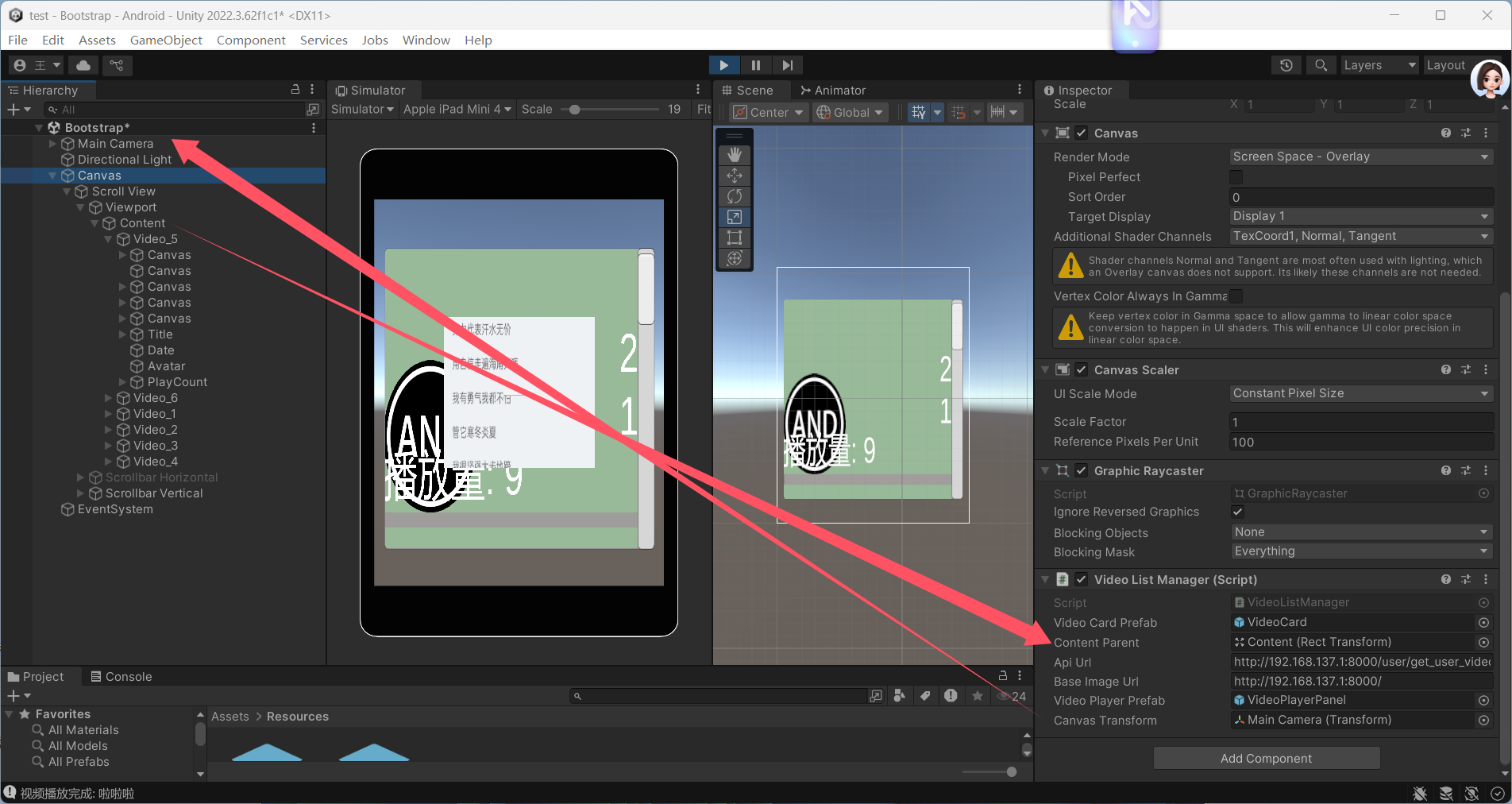
VideoDataModels
using System;
using System.Collections.Generic;
using UnityEngine;

// 视频剧集模型
[Serializable]
public class Episode
{
    public int title;
    public string url;
    public string price;
}

// 评论模型
[Serializable]
public class Comment
{
    public string commentContent;
    public string creationTime;
}

// 弹幕模型
[Serializable]
public class Danmu
{
    public string text;
    public string color;
    public string time;
}

// 单个视频模型
[Serializable]
public class VideoItem
{
    public int video_id;
    public string avatar;
    public string cover;
    public string nickName;
    public string title;
    public string description;
    public List commentContent;
    public List danmuList;
    public List episodes;
    public string account;
    public int user_id;
    public string nickname;
    public float peoplePlayCount;
    public int followers_count;
    public int total_videos;
    public string total_play_count;
    public int total_comments_count;
    public string date;
    public string total_thumbs_up;
    public string total_dislikes;
    public string total_mantou;
    public string total_collections;
    public int total_forwards;
}

// 用户视频数据模型
[Serializable]
public class UserVideoData
{
    public string account;
    public int user_id;
    public string avatar;
    public string nickname;
    public int followers_count;
    public int total_videos;
    public float total_play_count;
    public int total_comments_count;
    public string date;
    public float total_thumbs_up;
    public float total_dislikes;
    public float total_mantou;
    public float total_collections;
    public int total_forwards;
    public List videos;
}

// 视频列表响应模型
[Serializable]
public class VideoListResponse
{
    public List data;
}
VideoListManager
unity scroll view 两大预制体 显示 请后后端python django服务器后端请求视频展示
视频滚动播放列表
注意文件中的基础请求网络路径要使用你局域网中的路径
using System;
using System.Collections;
using System.Collections.Generic;
using UnityEngine;
using UnityEngine.Networking;
using UnityEngine.UI;
using TMPro;
using UnityEngine.Video;
public class VideoListManager : MonoBehaviour
{
public GameObject videoCardPrefab; // 视频卡片预制体
public Transform contentParent; // ScrollView的Content容器
public string apiUrl = "http://192.168.0.103:8000/user/get_user_video_statistics/"; // API地址
public string baseImageUrl = "http://192.168.137.1:8000/"; // 图片基础URL
public GameObject videoPlayerPrefab; // 视频播放器预制体(需要预先创建)
public Transform canvasTransform; // UI根节点
private GameObject currentVideoPlayer; // 当前正在播放的视频播放器
void Start()
{
Debug.Log("VideoListManager.Start: 开始初始化网络请求设置");
// 开发环境设置:允许HTTP连接和忽略SSL验证
System.Net.ServicePointManager.SecurityProtocol =
System.Net.SecurityProtocolType.Tls12 |
System.Net.SecurityProtocolType.Tls11 |
System.Net.SecurityProtocolType.Tls;
System.Net.ServicePointManager.ServerCertificateValidationCallback =
(sender, certificate, chain, sslPolicyErrors) => true;
Debug.Log("VideoListManager.Start: 开始发起视频列表请求");
StartCoroutine(GetVideoList());
}
// 从后端获取视频列表
IEnumerator GetVideoList()
{
Debug.Log($"VideoListManager.GetVideoList: 发起请求,目标URL: {apiUrl}");
UnityWebRequest request = UnityWebRequest.Get(apiUrl);
request.timeout = 10; // 设置超时时间
request.SetRequestHeader("Accept", "application/json");
yield return request.SendWebRequest();
// 打印调试信息
Debug.Log($"VideoListManager.GetVideoList: 请求状态: {request.result}");
Debug.Log($"VideoListManager.GetVideoList: 响应码: {request.responseCode}");
Debug.Log($"VideoListManager.GetVideoList: 响应内容长度: {request.downloadHandler.text.Length}");
Debug.Log($"VideoListManager.GetVideoList: 响应内容前50字符: {request.downloadHandler.text.Substring(0, Math.Min(50, request.downloadHandler.text.Length))}");
if (request.result == UnityWebRequest.Result.Success)
{
try
{
string json = request.downloadHandler.text;
Debug.Log($"VideoListManager.GetVideoList: 完整JSON响应: {json}");
// 处理JSON数据(兼容数组和对象格式)
VideoListResponse response;
if (json.StartsWith("["))
{
Debug.Log("VideoListManager.GetVideoList: JSON数据以数组开头,进行包裹处理");
// 如果是数组格式,包裹成对象
json = "{"data":" + json + "}";
response = JsonUtility.FromJson(json);
}
else
{
Debug.Log("VideoListManager.GetVideoList: JSON数据以对象开头,直接解析");
// 如果是对象格式,直接解析
response = JsonUtility.FromJson(json);
}
if (response != null)
{
Debug.Log($"VideoListManager.GetVideoList: 响应对象不为空,data字段 {(response.data != null ? "非空" : "空")}");
if (response.data != null)
{
Debug.Log($"VideoListManager.GetVideoList: 成功解析到 {response.data.Count} 个用户数据");
ClearAllVideoCards();
CreateAllVideoCards(response.data);
}
else
{
Debug.LogError("VideoListManager.GetVideoList: 解析后的数据中data字段为空");
}
}
else
{
Debug.LogError("VideoListManager.GetVideoList: 解析后得到的响应对象为空");
}
}
catch (Exception e)
{
Debug.LogError($"VideoListManager.GetVideoList: 解析JSON失败: {e.Message}
堆栈信息: {e.StackTrace}");
}
}
else
{
Debug.LogError($"VideoListManager.GetVideoList: 请求失败: {request.error},详细响应: {request.downloadHandler.text}");
}
}
// 创建所有视频卡片
void CreateAllVideoCards(List userDatas)
{
Debug.Log($"VideoListManager.CreateAllVideoCards: 开始创建视频卡片,共 {userDatas.Count} 个用户数据");
foreach (var userData in userDatas)
{
Debug.Log($"VideoListManager.CreateAllVideoCards: 处理用户数据,user_id: {userData.user_id}");
if (userData.videos != null)
{
Debug.Log($"VideoListManager.CreateAllVideoCards: 用户 {userData.user_id} 有 {userData.videos.Count} 个视频");
foreach (var video in userData.videos)
{
CreateVideoCard(video);
}
}
else
{
Debug.LogWarning($"VideoListManager.CreateAllVideoCards: 用户 {userData.user_id} 的videos字段为空");
}
}
}
// 创建单个视频卡片
void CreateVideoCard(VideoItem video)
{
Debug.Log($"VideoListManager.CreateVideoCard: 开始创建视频卡片,video_id: {video.video_id},标题: {video.title}");
if (videoCardPrefab == null)
{
Debug.LogError("VideoListManager.CreateVideoCard: 请赋值视频卡片预制体");
return;
}
if (contentParent == null)
{
Debug.LogError("VideoListManager.CreateVideoCard: 请赋值Content容器");
return;
}
// 实例化卡片
GameObject card = Instantiate(videoCardPrefab, contentParent);
card.name = $"Video_{video.video_id}"; // 命名卡片便于调试
try
{
// 打印视频数据详细信息
Debug.Log($"VideoListManager.CreateVideoCard: 视频 {video.video_id} 详细信息:标题-{video.title},描述-{video.description},封面URL-{video.cover},头像URL-{video.avatar}");
// 设置标题(兼容Text和TextMeshPro)
SetText(card.transform, "Title", video.title);
// 设置描述
SetText(card.transform, "Description", video.description);
// 设置播放量
SetText(card.transform, "PlayCount", $"播放量: {video.total_play_count}");
// 设置发布日期
string formattedDate = FormatDate(video.date);
Debug.Log($"VideoListManager.CreateVideoCard: 视频 {video.video_id} 格式化后的日期:{formattedDate}");
SetText(card.transform, "Date", formattedDate);
// 设置作者
SetText(card.transform, "Author", video.nickName);
// 加载封面图
LoadImageToUI(card.transform, "Cover", video.cover);
// 加载头像
LoadImageToUI(card.transform, "Avatar", video.avatar);
// 绑定点击事件
Button button = card.GetComponent