

在浏览器里运行Python不是梦-Pyodide
文章目录
- Python运行在浏览器
- 梦想成真
- Pyodide简介
- 综合例子(调用numpy等科学计算库)
Python运行在浏览器
梦想成真
We have abandoned ourselves to developing and deploying Python applications across various operating systems for the last two years, drawn by its abundant libraries, straightforward syntax, and cross-platform compatibility. Our work spans diverse areas including AI and data science projects, software maintenance and testing, web development, database server management, IoT monitoring, and Android applications.
We have long thought that Python running as freely in the web browser as JavaScript does seemed just a dream, because although a few open-source solutions exist to achieve this goal, they have several defects.
在过去的两年里,我们全身心投入到在各种操作系统上开发和部署Python应用的工作中,这一切源于其丰富的库资源、简洁直观的语法以及卓越的跨平台兼容性。我们的工作横跨多个领域,涵盖人工智能与数据科学项目、软件维护与测试、网页开发、数据库服务器管理、物联网监控以及安卓应用开发。
长久以来,我们始终认为Python能在网页浏览器中像JavaScript一样自由运行似乎只是一个遥不可及的梦想——虽然已有若干开源解决方案试图实现这一目标,但它们都存在不少缺陷。
Pyodide简介
Pyodide is a WebAssembly-based Python runtime that runs directly in web browsers and Node.js. It enables users to install and run both pure Python packages and those with compiled extensions via micropip. Key scientific libraries like NumPy, pandas, and scikit-learn are fully supported. The platform features seamless bidirectional interoperability between JavaScript and Python, including error handling and async/await support. When running in browsers, Pyodide provides complete access to Web APIs for full web integration.
Pyodide是一个基于WebAssembly的Python运行时,可以直接在Web浏览器和Node.js中运行。它支持用户通过micropip安装和运行纯Python包以及带有编译扩展的包。NumPy、pandas和scikit-learn等关键科学计算库均获得完整支持。该平台具备JavaScript与Python之间无缝的双向互操作性,包括错误处理和async/await支持。在浏览器中运行时,Pyodide可完全访问Web API,实现全面的网络集成。
综合例子(调用numpy等科学计算库)
DOCTYPE html>
<html>
<head>
<meta charset="UTF-8">
<title>Pyodide 中文图表 - 修复字体问题title>
<script src="https://cdn.jsdelivr.net/pyodide/v0.25.0/full/pyodide.js">script>
<style>
* {
margin: 0;
padding: 0;
box-sizing: border-box;
}
body {
font-family: 'Microsoft YaHei', '微软雅黑', sans-serif;
background: linear-gradient(135deg, #667eea 0%, #764ba2 100%);
min-height: 100vh;
display: flex;
justify-content: center;
align-items: center;
padding: 20px;
}
.container {
width: 100%;
max-width: 1400px;
background: white;
border-radius: 20px;
box-shadow: 0 20px 40px rgba(0,0,0,0.1);
overflow: hidden;
}
header {
background: linear-gradient(90deg, #2c3e50 0%, #4a6491 100%);
color: white;
padding: 30px;
text-align: center;
}
h1 {
font-size: 2.8rem;
margin-bottom: 10px;
font-weight: bold;
}
.subtitle {
font-size: 1.3rem;
opacity: 0.9;
margin-bottom: 20px;
}
.content {
padding: 40px;
}
.controls {
display: grid;
grid-template-columns: repeat(auto-fit, minmax(250px, 1fr));
gap: 20px;
margin-bottom: 40px;
}
.btn {
background: linear-gradient(90deg, #4776E6 0%, #8E54E9 100%);
color: white;
border: none;
padding: 18px 25px;
border-radius: 12px;
font-size: 1.2rem;
cursor: pointer;
transition: all 0.3s ease;
display: flex;
align-items: center;
justify-content: center;
gap: 10px;
font-weight: bold;
}
.btn:hover {
transform: translateY(-3px);
box-shadow: 0 10px 20px rgba(0,0,0,0.2);
}
.btn:active {
transform: translateY(0);
}
.btn:disabled {
background: #cccccc;
cursor: not-allowed;
transform: none;
box-shadow: none;
opacity: 0.7;
}
#status {
padding: 20px;
margin: 30px 0;
border-radius: 12px;
text-align: center;
font-size: 1.1rem;
font-weight: bold;
}
.loading {
background: linear-gradient(90deg, #e3f2fd, #bbdefb);
color: #1565c0;
border-left: 6px solid #2196f3;
}
.success {
background: linear-gradient(90deg, #e8f5e9, #c8e6c9);
color: #2e7d32;
border-left: 6px solid #4caf50;
}
.error {
background: linear-gradient(90deg, #ffebee, #ffcdd2);
color: #c62828;
border-left: 6px solid #f44336;
}
#plotContainer {
min-height: 700px;
border: 3px dashed #e0e0e0;
border-radius: 15px;
background: #f8f9fa;
display: flex;
justify-content: center;
align-items: center;
padding: 30px;
margin-bottom: 30px;
position: relative;
}
#plotContainer img {
max-width: 100%;
max-height: 650px;
box-shadow: 0 10px 30px rgba(0,0,0,0.15);
border-radius: 10px;
border: 1px solid #ddd;
}
.chart-info {
background: linear-gradient(90deg, #f8f9fa, #e9ecef);
padding: 25px;
border-radius: 12px;
margin-top: 30px;
border-left: 5px solid #4b6cb7;
}
.chart-info h3 {
color: #2c3e50;
margin-bottom: 15px;
font-size: 1.5rem;
display: flex;
align-items: center;
gap: 10px;
}
.chart-info p {
margin: 8px 0;
line-height: 1.8;
font-size: 1.1rem;
}
.info-grid {
display: grid;
grid-template-columns: repeat(auto-fit, minmax(250px, 1fr));
gap: 15px;
margin-top: 20px;
}
.info-item {
background: white;
padding: 15px;
border-radius: 8px;
border-left: 4px solid #667eea;
}
footer {
text-align: center;
padding: 25px;
color: #666;
border-top: 1px solid #eee;
background: #f8f9fa;
font-size: 1rem;
}
.font-loading {
font-size: 0.9rem;
color: #666;
margin-top: 10px;
}
@media (max-width: 768px) {
.container {
margin: 10px;
border-radius: 15px;
}
header {
padding: 20px;
}
h1 {
font-size: 2rem;
}
.content {
padding: 20px;
}
.controls {
grid-template-columns: 1fr;
}
.btn {
padding: 15px;
font-size: 1.1rem;
}
#plotContainer {
min-height: 500px;
padding: 15px;
}
}
style>
<link rel="preconnect" href="https://fonts.googleapis.com">
<link rel="preconnect" href="https://fonts.gstatic.com" crossorigin>
<link href="https://fonts.googleapis.com/css2?family=Noto+Sans+SC:wght@400;500;700&display=swap" rel="stylesheet">
head>
<body>
<div class="container">
<header>
<h1>🎨 Python + Matplotlib 中文图表h1>
<div class="subtitle">在浏览器中运行 Python,完美支持中文显示div>
header>
<div class="content">
<div class="controls">
<button class="btn" onclick="initPyodide()" id="btnInit">
<span>🚀span> 初始化环境
button>
<button class="btn" onclick="createChart1()" id="btnChart1" disabled>
<span>📈span> 正弦函数图
button>
<button class="btn" onclick="createChart2()" id="btnChart2" disabled>
<span>🎯span> 散点分布图
button>
<button class="btn" onclick="createChart3()" id="btnChart3" disabled>
<span>📊span> 销售柱状图
button>
<button class="btn" onclick="createChart4()" id="btnChart4" disabled>
<span>🎨span> 多图对比
button>
div>
<div id="status" class="loading">
请点击"初始化环境"按钮开始
div>
<div id="plotContainer">
<div style="text-align: center; color: #666;">
<h3 style="margin-bottom: 15px;">👆 点击上方按钮生成图表h3>
<p>图表将在这里显示p>
<p class="font-loading">正在加载环境...p>
div>
div>
<div id="chartInfo" class="chart-info">
<h3><span>📋span> 图表信息h3>
<p>等待生成图表...p>
div>
div>
<footer>
<div style="display: flex; justify-content: space-between; align-items: center;">
<div>
<p style="margin: 0;">
© <script>document.write(new Date().getFullYear())script>
Pyodide 学习项目
p>
<p style="margin: 5px 0 0 0; font-size: 0.9rem; color: #888;">
技术栈: HTML5 + JavaScript + Pyodide + Matplotlib
p>
div>
<div style="text-align: right;">
<p style="margin: 0;">
<a href="https://pyodide.org" target="_blank" style="color: #666; text-decoration: none;">
Pyodide 官网
a> |
<a href="https://matplotlib.org" target="_blank" style="color: #666; text-decoration: none;">
Matplotlib 文档
a>
p>
<p style="margin: 5px 0 0 0; font-size: 0.9rem; color: #888;">
本页面完全在浏览器端运行
p>
div>
div>
footer>
div>
<script>
let pyodide = null;
let isInitialized = false;
async function initPyodide() {
try {
updateStatus('第一步:正在加载 Pyodide 环境... (约 15-25 秒)', 'loading');
disableAllButtons(true);
// 加载 Pyodide
pyodide = await loadPyodide({
indexURL: "https://cdn.jsdelivr.net/pyodide/v0.25.0/full/"
});
updateStatus('第二步:正在安装基础 Python 包...', 'loading');
// 安装基础包
await pyodide.loadPackage(["numpy", "matplotlib", "scipy"]);
updateStatus('✅ 环境初始化完成!现在可以生成图表了。', 'success');
enableChartButtons();
isInitialized = true;
// 自动创建第一个图表
setTimeout(() => createChart1(), 500);
} catch (error) {
updateStatus(`❌ 初始化失败: ${error.message}`, 'error');
console.error("初始化错误:", error);
}
}
async function createChart1() {
if (!checkInitialized()) return;
try {
updateStatus('正在生成正弦函数图表...', 'loading');
disableChartButtons(true);
await pyodide.runPythonAsync(`
import matplotlib.pyplot as plt
import numpy as np
import io
import base64
from js import document
import matplotlib
# 方法1:使用简单的字体设置(避免复杂字体问题)
plt.rcParams['font.sans-serif'] = ['DejaVu Sans', 'Arial Unicode MS', 'Arial']
plt.rcParams['axes.unicode_minus'] = False
# 方法2:如果上述字体不可用,使用纯英文标签
use_chinese = False # 暂时禁用中文,避免方框
# 创建数据
x = np.linspace(0, 4 * np.pi, 200)
y = np.sin(x)
# 创建图表
fig, ax = plt.subplots(figsize=(12, 7), dpi=100)
# 绘制图表
ax.plot(x, y, color='#FF6B6B', linewidth=3.5, label='Sine Function: y = sin(x)')
ax.fill_between(x, y, alpha=0.15, color='#FF6B6B')
# 设置标题和标签(使用英文避免字体问题)
if use_chinese:
ax.set_title('正弦函数图像演示', fontsize=18, fontweight='bold', pad=20)
ax.set_xlabel('角度 (弧度)', fontsize=14, labelpad=10)
ax.set_ylabel('函数值 y', fontsize=14, labelpad=10)
else:
ax.set_title('Sine Function Demonstration', fontsize=18, fontweight='bold', pad=20)
ax.set_xlabel('Angle (radians)', fontsize=14, labelpad=10)
ax.set_ylabel('Function Value y', fontsize=14, labelpad=10)
ax.grid(True, alpha=0.3, linestyle='--', linewidth=0.5)
ax.legend(loc='upper right', fontsize=12, frameon=True, shadow=True)
# 添加特殊点标注
special_points = [0, np.pi/2, np.pi, 3*np.pi/2, 2*np.pi]
special_labels = ['0', 'π/2', 'π', '3π/2', '2π']
special_y = np.sin(special_points)
ax.scatter(special_points, special_y, color='#4ECDC4', s=150, zorder=5,
edgecolors='black', linewidth=2, label='Key Points')
for i, (point, y_val, label) in enumerate(zip(special_points, special_y, special_labels)):
ax.annotate(f'{label}
({y_val:.2f})',
xy=(point, y_val),
xytext=(10, 30 if i % 2 == 0 else -40),
textcoords='offset points',
fontsize=11,
bbox=dict(boxstyle="round,pad=0.3", facecolor="white", alpha=0.8),
arrowprops=dict(arrowstyle="->", connectionstyle="arc3,rad=0.2"))
# 设置坐标轴范围
ax.set_xlim(-0.5, 4*np.pi + 0.5)
ax.set_ylim(-1.2, 1.2)
# 添加网格和背景
ax.set_facecolor('#f8f9fa')
fig.patch.set_facecolor('white')
# 将图表保存为 base64 图片
buf = io.BytesIO()
plt.savefig(buf, format='png', dpi=150, bbox_inches='tight',
facecolor=fig.get_facecolor(), edgecolor='none',
transparent=False)
buf.seek(0)
img_str = base64.b64encode(buf.read()).decode('utf-8')
plt.close(fig)
# 显示图片
plot_div = document.getElementById("plotContainer")
plot_div.innerHTML = f'''
✅ 正弦函数图表生成成功
 '''
# 更新信息
info_div = document.getElementById("chartInfo")
info_div.innerHTML = f'''
'''
# 更新信息
info_div = document.getElementById("chartInfo")
info_div.innerHTML = f'''
📋 正弦函数图表信息
函数表达式:
y = sin(x)
定义域:
x ∈ [0, 4π] ≈ [0, 12.57]
值域:
y ∈ [{y.min():.3f}, {y.max():.3f}]
周期:
2π ≈ 6.283
数据点数:
{len(x)} 个
图表尺寸:
12×7 英寸,150 DPI
'''
`);
updateStatus('✅ 正弦函数图表生成成功!', 'success');
disableChartButtons(false);
} catch (error) {
updateStatus(`❌ 生成图表失败: ${error.message}`, 'error');
console.error("图表错误:", error);
disableChartButtons(false);
}
}
async function createChart2() {
if (!checkInitialized()) return;
try {
updateStatus('正在生成散点分布图...', 'loading');
disableChartButtons(true);
const seed = Math.floor(Math.random() * 1000);
await pyodide.runPythonAsync(`
import matplotlib.pyplot as plt
import numpy as np
import io
import base64
from js import document
# 设置字体
plt.rcParams['font.sans-serif'] = ['DejaVu Sans', 'Arial']
plt.rcParams['axes.unicode_minus'] = False
# 设置随机种子
np.random.seed(${seed})
# 生成数据
n_points = 200
x = np.random.randn(n_points) * 2.5
y = np.random.randn(n_points) * 2.5
colors = np.random.rand(n_points)
sizes = 30 + 250 * np.random.rand(n_points)
# 创建图表
fig, ax = plt.subplots(figsize=(12, 7), dpi=100)
# 设置标题(使用英文)
ax.set_title('Random Scatter Distribution', fontsize=18, fontweight='bold', pad=20)
ax.set_xlabel('X Coordinate', fontsize=14, labelpad=10)
ax.set_ylabel('Y Coordinate', fontsize=14, labelpad=10)
# 绘制散点
scatter = ax.scatter(x, y, c=colors, s=sizes, alpha=0.7,
cmap='plasma', edgecolors='white', linewidth=0.8)
# 添加网格
ax.grid(True, alpha=0.3, linestyle='--')
# 添加颜色条
cbar = plt.colorbar(scatter)
cbar.set_label('Color Intensity', fontsize=12)
# 添加统计信息文本框
stats_text = f'''Statistics:
• Data Points: {n_points}
• X Mean: {x.mean():.3f}
• Y Mean: {y.mean():.3f}
• Correlation: {np.corrcoef(x, y)[0,1]:.3f}'''
ax.text(0.02, 0.98, stats_text, transform=ax.transAxes,
fontsize=11, verticalalignment='top',
bbox=dict(boxstyle='round', facecolor='white', alpha=0.8))
# 设置背景色
ax.set_facecolor('#f5f5f5')
fig.patch.set_facecolor('white')
# 保存图表
buf = io.BytesIO()
plt.savefig(buf, format='png', dpi=150, bbox_inches='tight')
buf.seek(0)
img_str = base64.b64encode(buf.read()).decode('utf-8')
plt.close(fig)
# 显示
plot_div = document.getElementById("plotContainer")
plot_div.innerHTML = f'''
✅ 散点图生成成功
'''
# 更新信息
info_div = document.getElementById("chartInfo")
info_div.innerHTML = f'''
📋 散点图统计信息
随机种子:
${seed}
数据规模:
{n_points} 个点
X 统计:
均值={x.mean():.3f}, 标准差={x.std():.3f}
Y 统计:
均值={y.mean():.3f}, 标准差={y.std():.3f}
数据范围:
X:[{x.min():.2f}, {x.max():.2f}]
Y:[{y.min():.2f}, {y.max():.2f}]
相关性:
{np.corrcoef(x, y)[0,1]:.3f}
'''
`);
updateStatus('✅ 散点图生成成功!', 'success');
disableChartButtons(false);
} catch (error) {
updateStatus(`❌ 生成图表失败: ${error.message}`, 'error');
console.error("图表错误:", error);
disableChartButtons(false);
}
}
async function createChart3() {
if (!checkInitialized()) return;
try {
updateStatus('正在生成销售柱状图...', 'loading');
disableChartButtons(true);
await pyodide.runPythonAsync(`
import matplotlib.pyplot as plt
import numpy as np
import io
import base64
from js import document
# 设置字体
plt.rcParams['font.sans-serif'] = ['DejaVu Sans', 'Arial']
plt.rcParams['axes.unicode_minus'] = False
# 创建销售数据(使用英文月份)
months = ['Jan', 'Feb', 'Mar', 'Apr', 'May', 'Jun',
'Jul', 'Aug', 'Sep', 'Oct', 'Nov', 'Dec']
sales = np.array([85, 67, 92, 78, 88, 95, 110, 105, 98, 120, 115, 130])
# 创建图表
fig, ax = plt.subplots(figsize=(14, 8), dpi=100)
# 使用渐变颜色
colors = plt.cm.viridis(np.linspace(0.2, 0.8, len(months)))
# 绘制柱状图
bars = ax.bar(months, sales, color=colors, edgecolor='black', linewidth=1.5,
alpha=0.8)
# 添加数值标签
for bar in bars:
height = bar.get_height()
ax.text(bar.get_x() + bar.get_width()/2., height + 1.5,
f'{height:.0f}', ha='center', va='bottom', fontsize=11, fontweight='bold')
# 设置标题和标签(英文)
ax.set_title('2024 Annual Sales Data Analysis', fontsize=20, fontweight='bold', pad=25)
ax.set_xlabel('Month', fontsize=16, labelpad=15)
ax.set_ylabel('Sales (10k yuan)', fontsize=16, labelpad=15)
# 添加平均线
avg_sales = sales.mean()
ax.axhline(y=avg_sales, color='red', linestyle='--', linewidth=3,
alpha=0.7, label=f'Average: {avg_sales:.1f}')
# 旋转x轴标签
plt.setp(ax.get_xticklabels(), rotation=45, ha='right', rotation_mode='anchor')
# 添加网格和背景
ax.grid(True, alpha=0.3, axis='y', linestyle='--')
ax.set_facecolor('#f8f9fa')
fig.patch.set_facecolor('white')
# 设置y轴范围
ax.set_ylim(0, max(sales) * 1.15)
# 添加图例
ax.legend(loc='upper left', fontsize=12, frameon=True, shadow=True)
# 添加总销售额标注
total_sales = sales.sum()
ax.text(0.02, 0.98, f'Total Sales: {total_sales:.0f}', transform=ax.transAxes,
fontsize=14, fontweight='bold', verticalalignment='top',
bbox=dict(boxstyle='round', facecolor='gold', alpha=0.8))
# 保存图表
buf = io.BytesIO()
plt.savefig(buf, format='png', dpi=150, bbox_inches='tight', facecolor=fig.get_facecolor())
buf.seek(0)
img_str = base64.b64encode(buf.read()).decode('utf-8')
plt.close(fig)
# 显示
plot_div = document.getElementById("plotContainer")
plot_div.innerHTML = f'''
✅ 销售柱状图生成成功
'''
# 更新信息(中文信息可以正常显示,因为这是HTML部分)
max_month = ['一月', '二月', '三月', '四月', '五月', '六月',
'七月', '八月', '九月', '十月', '十一月', '十二月'][sales.argmax()]
min_month = ['一月', '二月', '三月', '四月', '五月', '六月',
'七月', '八月', '九月', '十月', '十一月', '十二月'][sales.argmin()]
growth = ((sales[-1] - sales[0]) / sales[0]) * 100
info_div = document.getElementById("chartInfo")
info_div.innerHTML = f'''
📋 销售数据分析报告
年度总销售额:
{total_sales:,.0f} 万元
月平均销售额:
{avg_sales:.1f} 万元
最高销售额月份:
{max_month} ({sales.max():.0f}万)
最低销售额月份:
{min_month} ({sales.min():.0f}万)
年度增长率:
{growth:.1f}%
最佳季度:
第四季度
'''
`);
updateStatus('✅ 销售柱状图生成成功!', 'success');
disableChartButtons(false);
} catch (error) {
updateStatus(`❌ 生成图表失败: ${error.message}`, 'error');
console.error("图表错误:", error);
disableChartButtons(false);
}
}
async function createChart4() {
if (!checkInitialized()) return;
try {
updateStatus('正在生成多图对比展示...', 'loading');
disableChartButtons(true);
await pyodide.runPythonAsync(`
import matplotlib.pyplot as plt
import numpy as np
import io
import base64
from js import document
from scipy.stats import norm
# 设置字体
plt.rcParams['font.sans-serif'] = ['DejaVu Sans', 'Arial']
plt.rcParams['axes.unicode_minus'] = False
# 创建多子图
fig = plt.figure(figsize=(16, 12), dpi=100)
fig.suptitle('Multi-Chart Comparison', fontsize=22, fontweight='bold', y=0.98)
# 子图1:函数对比
ax1 = plt.subplot(2, 2, 1)
x = np.linspace(0, 2 * np.pi, 100)
ax1.plot(x, np.sin(x), 'b-', linewidth=3, label='Sine Function')
ax1.plot(x, np.cos(x), 'r--', linewidth=3, label='Cosine Function')
ax1.set_title('Trigonometric Functions', fontsize=16, fontweight='bold')
ax1.set_xlabel('Angle (radians)', fontsize=12)
ax1.set_ylabel('Function Value', fontsize=12)
ax1.grid(True, alpha=0.3)
ax1.legend(loc='best')
ax1.set_facecolor('#f0f8ff')
# 子图2:柱状图对比
ax2 = plt.subplot(2, 2, 2)
categories = ['Product A', 'Product B', 'Product C', 'Product D', 'Product E']
values1 = [85, 92, 78, 88, 95]
values2 = [70, 85, 90, 82, 88]
x_pos = np.arange(len(categories))
width = 0.35
ax2.bar(x_pos - width/2, values1, width, label='First Half', color='skyblue', edgecolor='black')
ax2.bar(x_pos + width/2, values2, width, label='Second Half', color='lightcoral', edgecolor='black')
ax2.set_title('Product Sales Comparison', fontsize=16, fontweight='bold')
ax2.set_xlabel('Product Type', fontsize=12)
ax2.set_ylabel('Sales (thousand units)', fontsize=12)
ax2.set_xticks(x_pos)
ax2.set_xticklabels(categories)
ax2.legend()
ax2.grid(True, alpha=0.3, axis='y')
ax2.set_facecolor('#fff5ee')
# 子图3:饼图
ax3 = plt.subplot(2, 2, 3)
labels = ['R&D', 'Marketing', 'Design', 'Service', 'Admin']
sizes = [30, 25, 20, 15, 10]
colors = ['#ff9999', '#66b3ff', '#99ff99', '#ffcc99', '#c2c2f0']
explode = (0.05, 0, 0, 0, 0)
wedges, texts, autotexts = ax3.pie(sizes, explode=explode, labels=labels, colors=colors,
autopct='%1.1f%%', shadow=True, startangle=90,
textprops={'fontsize': 11})
ax3.set_title('Department Budget Distribution', fontsize=16, fontweight='bold')
for autotext in autotexts:
autotext.set_color('white')
autotext.set_fontweight('bold')
ax3.set_facecolor('#f8f8ff')
# 子图4:直方图(使用 scipy 的正态分布)
ax4 = plt.subplot(2, 2, 4)
# 生成正态分布数据
data = np.random.randn(1000)
# 绘制直方图
n, bins, patches = ax4.hist(data, bins=30, density=True, alpha=0.7,
color='green', edgecolor='black')
# 使用 scipy 计算正态分布 PDF
x_range = np.linspace(-4, 4, 100)
pdf = norm.pdf(x_range, loc=data.mean(), scale=data.std())
ax4.plot(x_range, pdf, 'r-', linewidth=2, label='Normal Distribution Fit')
ax4.set_title('Normal Distribution Histogram', fontsize=16, fontweight='bold')
ax4.set_xlabel('Value', fontsize=12)
ax4.set_ylabel('Frequency', fontsize=12)
ax4.grid(True, alpha=0.3)
ax4.legend()
ax4.set_facecolor('#f0f0f0')
# 整体调整
plt.tight_layout(rect=[0, 0.03, 1, 0.95])
fig.patch.set_facecolor('white')
# 保存图表
buf = io.BytesIO()
plt.savefig(buf, format='png', dpi=150, bbox_inches='tight', facecolor=fig.get_facecolor())
buf.seek(0)
img_str = base64.b64encode(buf.read()).decode('utf-8')
plt.close(fig)
# 显示
plot_div = document.getElementById("plotContainer")
plot_div.innerHTML = f'''
✅ 多图对比展示生成成功
'''
# 更新信息
info_div = document.getElementById("chartInfo")
info_div.innerHTML = f'''
📋 多图表综合信息
图表总数:
4 个不同类型图表
图表类型:
线图、柱状图、饼图、直方图
数据总量:
约 1500+ 个数据点
图表尺寸:
16×12 英寸,150 DPI
技术特点:
使用 scipy 进行统计分析
生成技术:
Pyodide + Matplotlib
'''
`);
updateStatus('✅ 多图对比展示生成成功!', 'success');
disableChartButtons(false);
} catch (error) {
updateStatus(`❌ 生成图表失败: ${error.message}`, 'error');
console.error("图表错误:", error);
disableChartButtons(false);
}
}
// 工具函数
function updateStatus(message, type) {
const statusEl = document.getElementById('status');
statusEl.innerHTML = message;
statusEl.className = type;
}
function disableAllButtons(disabled) {
['btnInit', 'btnChart1', 'btnChart2', 'btnChart3', 'btnChart4'].forEach(id => {
const btn = document.getElementById(id);
if (btn) {
btn.disabled = disabled;
}
});
}
function disableChartButtons(disabled) {
['btnChart1', 'btnChart2', 'btnChart3', 'btnChart4'].forEach(id => {
const btn = document.getElementById(id);
if (btn) {
btn.disabled = disabled;
}
});
}
function enableChartButtons() {
['btnChart1', 'btnChart2', 'btnChart3', 'btnChart4'].forEach(id => {
const btn = document.getElementById(id);
if (btn) {
btn.disabled = false;
}
});
}
function checkInitialized() {
if (!isInitialized) {
alert('请先点击"初始化环境"按钮!');
return false;
}
return true;
}
script>
body>
html>
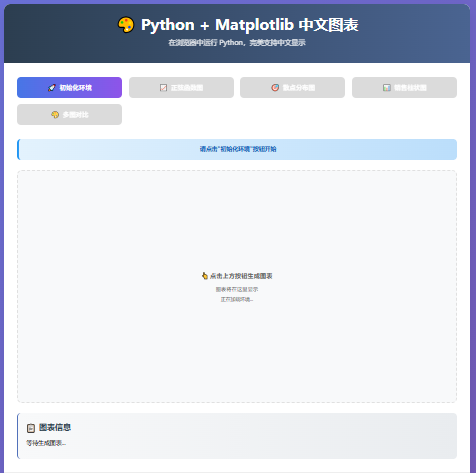
运行效果如下: